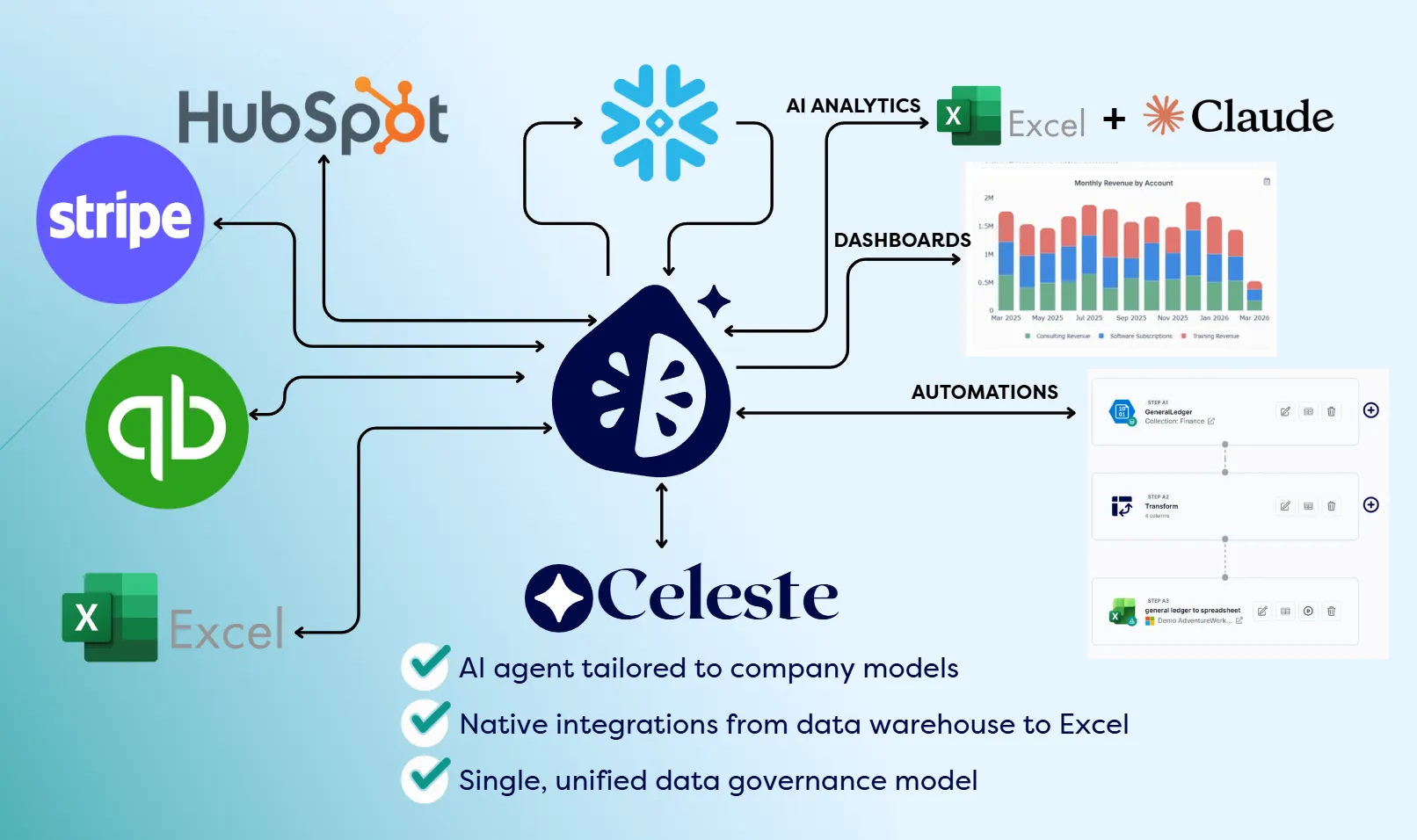


Last Tuesday I typed one sentence into a blank Excel spreadsheet and five journal entries posted to QuickBooks. No CSV export. No logging into QuickBooks. No copy-paste. One prompt in the Claude sidebar, and the entries were live in the general ledger before I finished my coffee.
That’s when it clicked for me. Claude for Excel is the most exciting thing to happen to finance tooling in years.
If you’re an FP&A analyst at a mid-market company, you already know the drill. Download the QuickBooks or NetSuite CSV. Paste it into Excel. Reformat, reconcile, pray nothing breaks downstream. I’ve been running Claude daily since October 2025, mostly on coding and operational work, and when the Excel plugin opened up to Claude Pro subscribers in January 2026 the best surprise was how familiar it felt. Same Claude, same instincts. It just happens to live where my numbers already are.
What can Claude for Excel actually do today?
Last week, inside a blank Excel spreadsheet, I did this in a single sitting:
- Pulled live data straight from QuickBooks into the workbook. No CSV export, no copy-paste. Claude reached into QuickBooks through Go Fig and streamed the data right onto the sheet.
- Wrote changes back to QuickBooks from inside Excel. One natural-language prompt in the Claude sidebar, referencing a tab in the spreadsheet, and Claude created new accounts and posted new journal entries in QuickBooks for me. Full write-access setup lives in the QuickBooks connector docs.
Think about what that means. No more leaving Excel to pull a QuickBooks report. No more logging into HubSpot to update a contact. No more opening NetSuite to post an entry. Your spreadsheet becomes the command center for your whole stack, and getting there is simpler than you’d expect. If you want to skip ahead to the wiring, the Go Fig + Claude for Excel setup guide is the shortest path.
Ten rules that make Claude for Excel click
Here are the ten rules I use every day. They’re quick to pick up, they compound fast, and any one of them on its own will feel like a cheat code. I’ll also point you to a free starter pack at the end so you can skip setup and jump straight to the fun part.
Rule 1: Use Claude Opus 4.6 on the $100/mo plan
Start here. Run Opus 4.6 on the Max plan. The $20 tier burns through limits fast on real analytical work, and Sonnet misses things Opus catches.
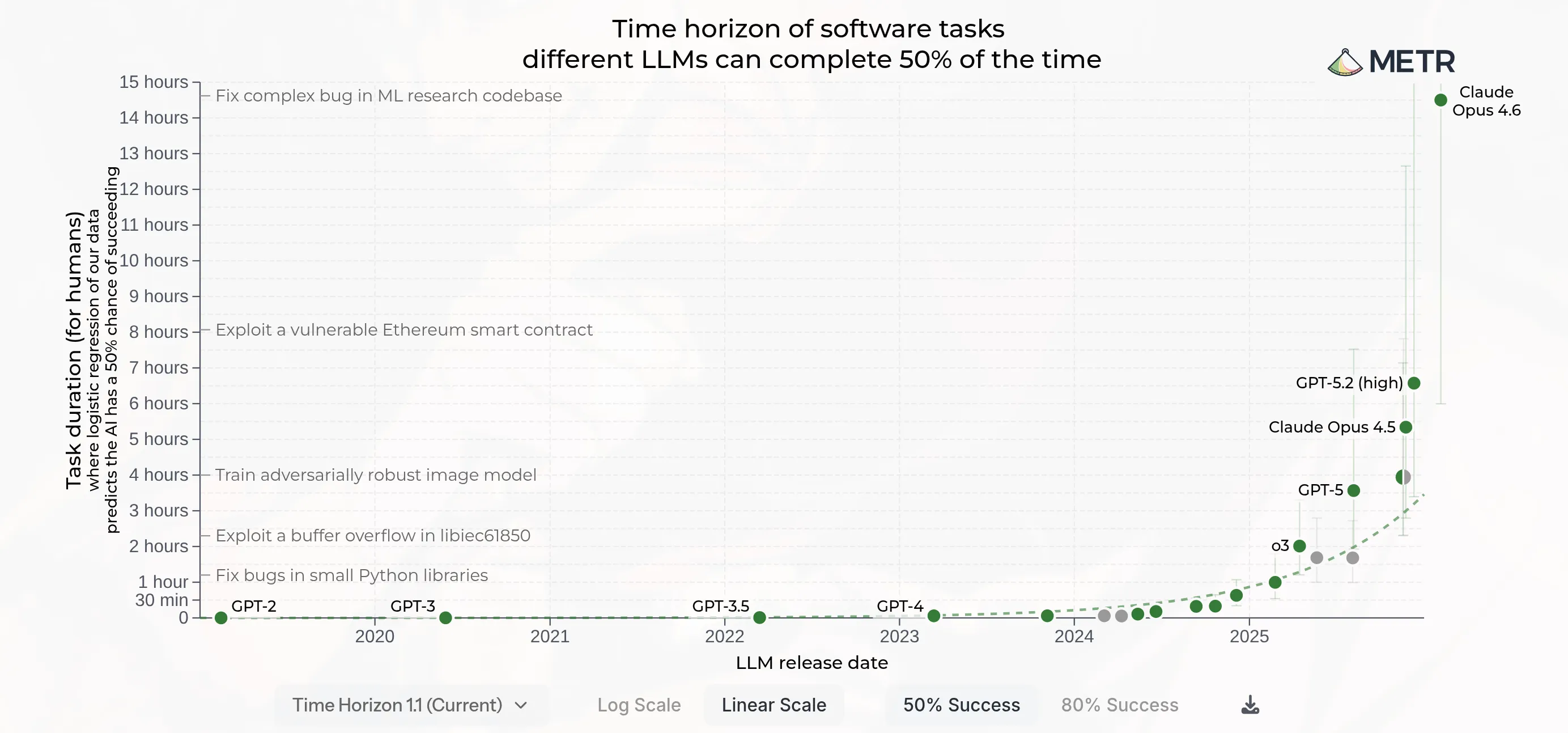
The gap between Sonnet and Opus 4.6 isn’t subtle. On METR’s task-completion time-horizon dashboard, Opus roughly tripled the prior generation, from about five hours of reliable autonomous work to fifteen. In spreadsheet terms, that’s the difference between patching one cell and updating every formula that references it.
“Claude Opus allows the brain to think about the edge cases and look for other formulas that might be updated, like any downstream impacts. Every time that Claude makes an update inside your spreadsheet, it’s comprehensive.”
Thoroughness is the whole point. If you only change one thing after reading this post, change the model.
Rule 2: Give Claude context
Claude starts every session empty-handed. Your edge is the context Claude doesn’t have by default: your chart of accounts, fiscal calendar, vendor quirks, methodology. Without it you have an expensive chatbot. With it you have a single source of truth Claude can reason over.
I run three layers:
| Layer | What | Where it lives |
|---|---|---|
| 1. Instructions | Who you are, how you work, output preferences, must-do / never-do rules | Claude sidebar, Settings, Instructions (per user) |
| 2. Claude Docs | Company-wide reference: chart of accounts, metric definitions, policies, vendor notes, Excel standards | A CLAUDE-DOCS.xlsx workbook on OneDrive/SharePoint/Drive, kept open in Excel |
| 3. Skills | Reusable slash-commands for recurring workflows | claude.ai/settings/capabilities, Skills (auto-syncs to Excel) |
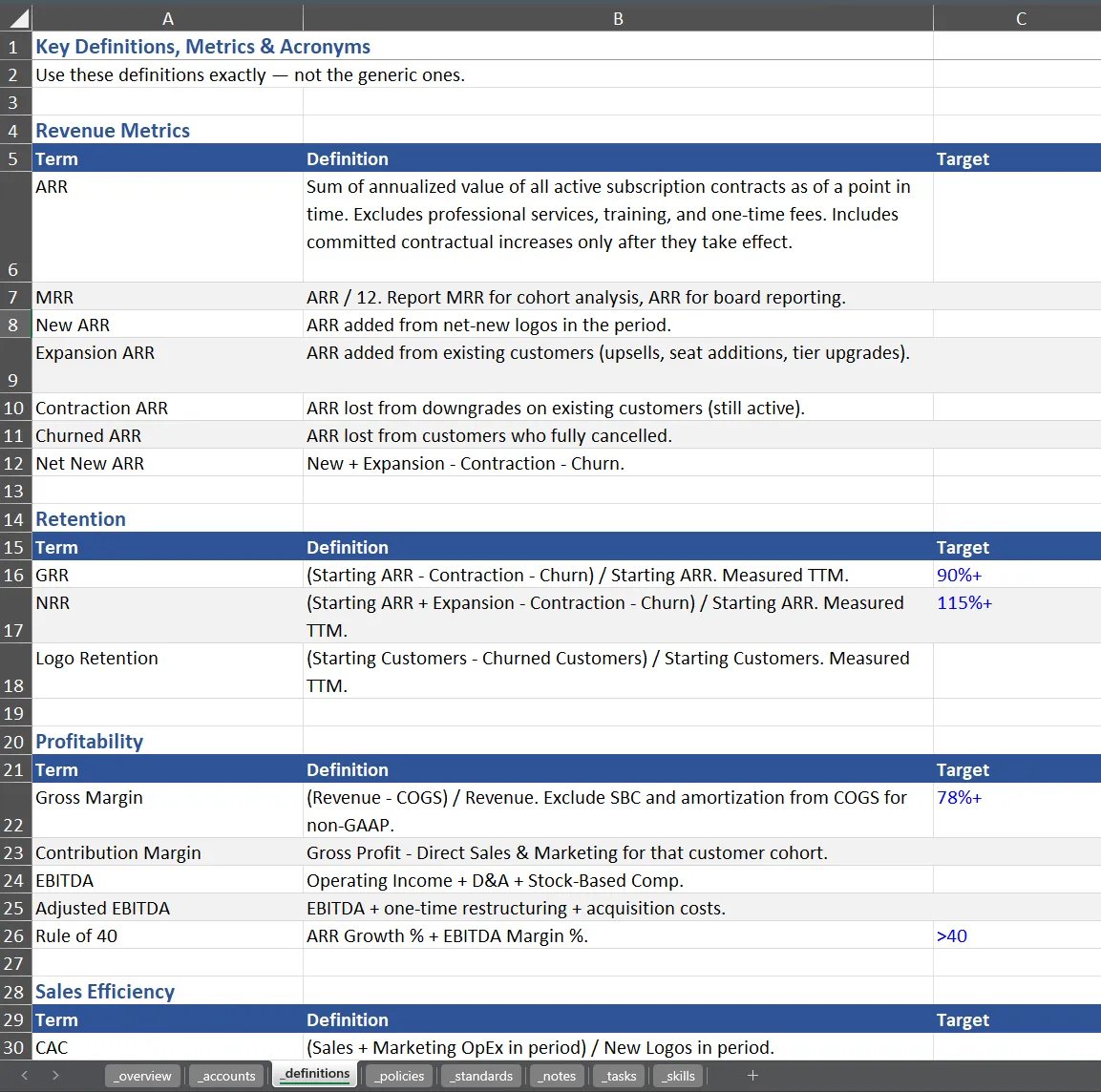
The CLAUDE-DOCS workbook is the magic one. Keep it open in the background and Claude reads across open workbooks. A question in any other file pulls the answer from the right sheet (_accounts, _definitions, _policies, _standards, _notes, _tasks, _skills) and cites which sheet it used.
“Things like your account IDs and account names, accounting rules, fiscal year definitions, what’s your industry and how do you make money, what are your biggest cost drivers and revenue drivers, the things that you want to live in the brain, that you can bring to every single interaction with Claude.”
Dump the things only you know into the brain once, reap the benefit every session after. The starter pack at the end of this post includes a pre-filled CLAUDE-DOCS.xlsx template you can drop into your own Drive and start editing.
Rule 3: Use skills for repeated tasks
Run the same analysis more than twice? Turn it into a Skill.
A Skill is a tiny folder (a SKILL.md file plus optional scripts or reference docs) that Claude loads on demand when you type /skill-name in the sidebar. Think /financial-forecast, /variance-analysis, /month-end-close, /model-health-check. Upload once at claude.ai/settings/capabilities and it syncs to Excel automatically.
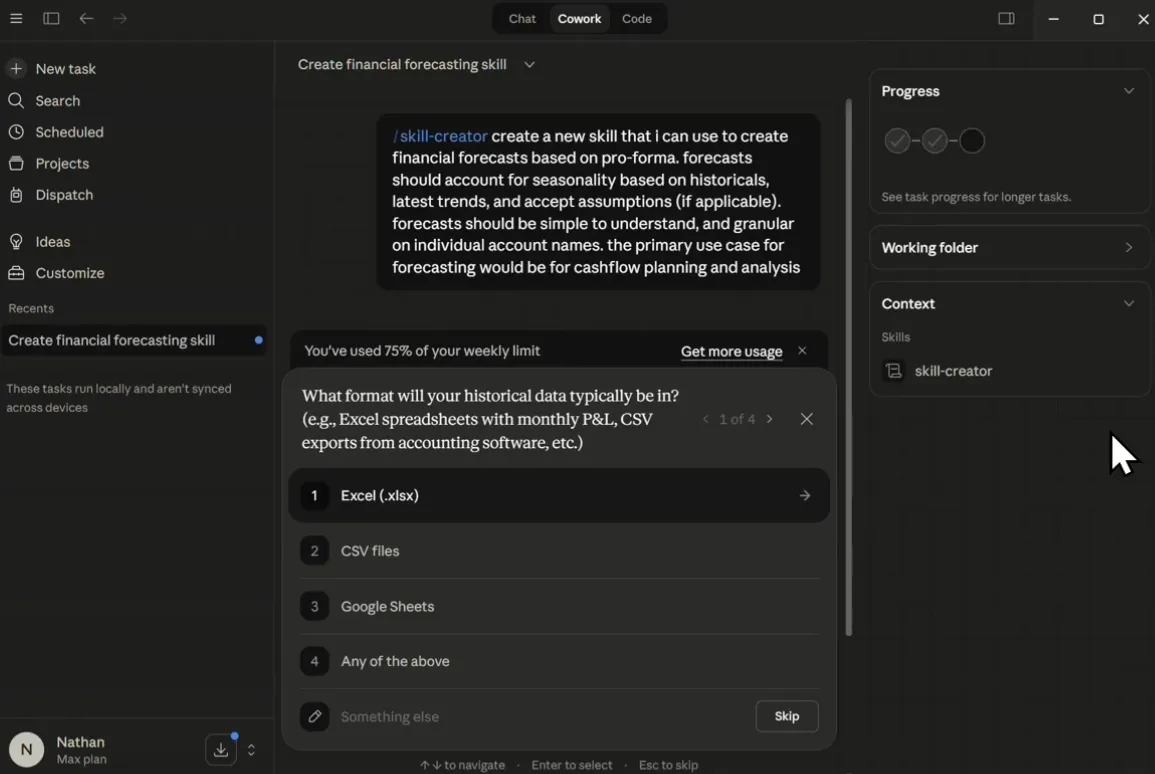
The fastest way to author a skill is to have Claude write it for you. Type /skill-creator in the sidebar, describe the workflow in plain English, and Claude drafts the SKILL.md with the right frontmatter and step-by-step instructions. Iterate, save, upload.
“The best way to create a skill is to actually use Claude to create a skill. Once this skill is created, I can save it and all the content details are in that skill, and I can use it to go ahead and do a financial forecast.”
A 17-minute financial forecast that used to require rebuilding from scratch becomes a single command. And because the skill is plain markdown, you can version-control it, share it, and fork it when your process changes.
Rule 4: Improve Claude as a team
Skills and docs compound when they’re shared. Put CLAUDE-DOCS.xlsx in shared cloud storage with edit access for the whole team. Drop skill .zip files in a skills/ folder next to it. Log new skills in the _skills tab so teammates can discover them.
Different people attack problems from different angles. One teammate writes /variance-analysis, another writes /model-health-check, and the whole team gets faster because neither of them would have written both.
“I end up finding that she can create skills that I haven’t thought of, that I start implementing. It’s a positive feedback loop of building this brain and improving our workflow together as a team.”
This is the rule that matters most over the long run. Tools change; the collective brain compounds. It’s the same lesson I learned running Beehive Waffle Co. The process documentation you leave behind outlasts whatever tool you wrote it for.
Rule 5: Don’t babysit Claude. Multi-task.
A real task on Opus 4.6 (a full 12-month forecast, a cost-variance analysis on a messy ledger) can take 15 to 20 minutes. Don’t sit there watching it. Open multiple Excel windows, each with its own Claude sidebar session, and kick off four to six analyses at once.
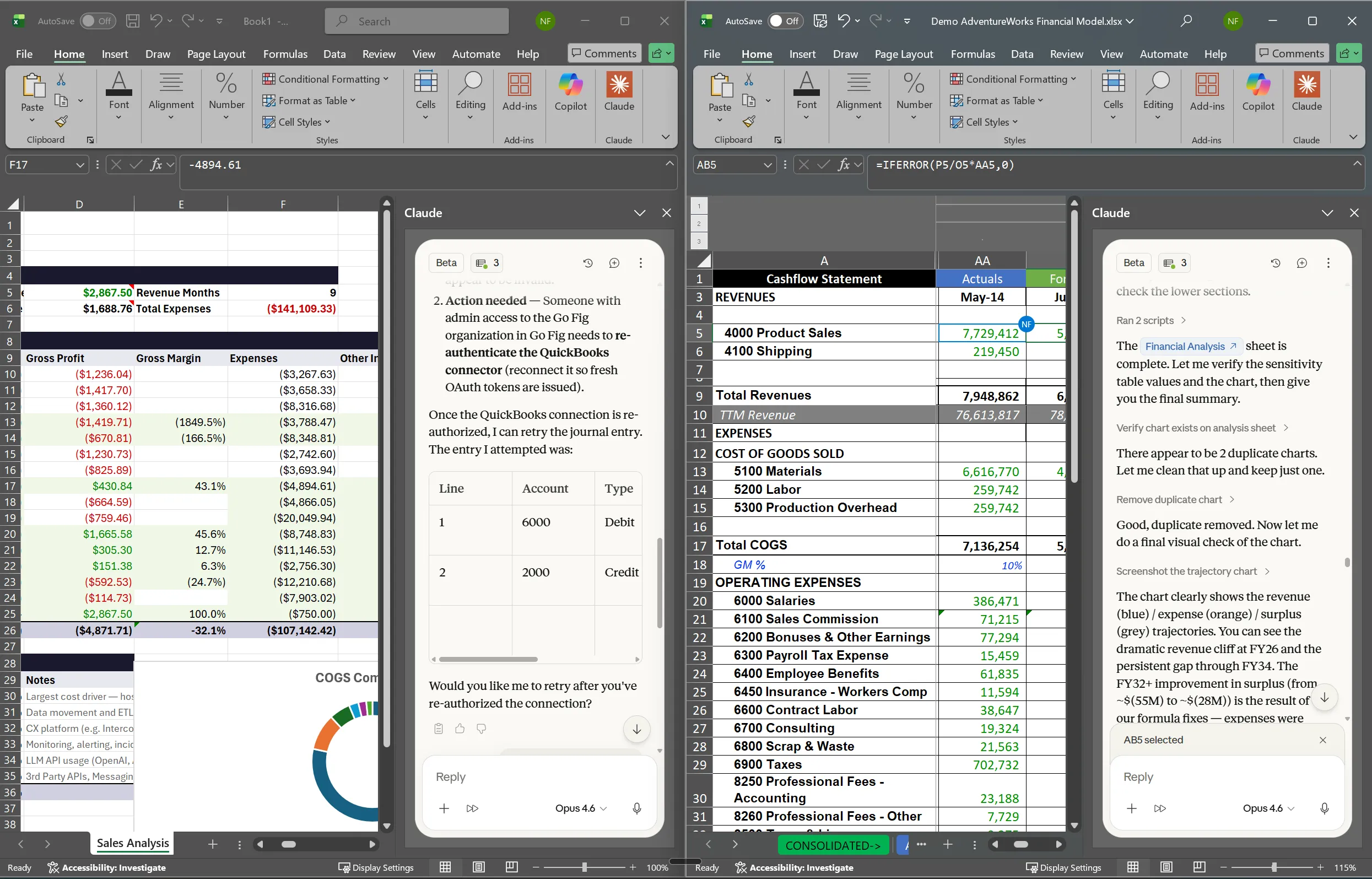
Your role changes when you do this. You stop being the analyst doing the work and start being the CFO steering a team of them.
“You’re turning from the financial analyst yourself to more of the CFO who’s managing four to five to six different financial analysts who are doing the work for you in real time, asking for input that you can provide. You have full control, but that’s all done at the same time.”
Twenty minutes to run four analyses beats eighty minutes to run them one by one. The math is boring; the leverage is not.
Rule 6: Offload everything, even small changes
The instinct is to handle small fixes yourself and only delegate the big work. Resist it.
In a 20+ tab workbook, one small change usually has downstream cells, edge cases, and related formulas that also need updating. Miss them and you get silent drift: the kind of error that doesn’t surface until the monthly review turns into a fire drill. I saw that pattern over and over at Capital One.
“If you tell Claude to fix every little small thing, especially on Opus, it will expand its scope to look for every other related reference that should also be updated. That’s how you avoid these errors, inconsistencies, or drift in logic over time.”
Opus expands the scope of any fix to find every related reference and update them together. Counterintuitively, the smaller the change, the more valuable this is. A “quick fix” you do by hand is exactly the thing that breaks a downstream report two weeks later.
Rule 7: Don’t type. Speak instead.
Install a dictation tool. I use Wispr Flow on my laptop and my phone. Talk to Claude instead of typing.
The payoff isn’t speed, it’s completeness of context. When you type, you abbreviate. When you talk, you share the background, the constraints, the “why,” all the color that makes an answer actually useful.
“I find that I share more information when I’m talking to Claude than when I’m typing it. This was something that actually took me a little bit of a while to adopt. Violet was really pushing me, but I’m glad I ended up adopting it.”
Speaking lowers the activation energy for giving context, which means you give more of it. That’s the whole game.
Rule 8: Ask Claude to make Claude better
The best skills aren’t the ones you write from scratch. They’re the ones Claude writes for you. Same with your Instructions, your CLAUDE-DOCS entries, your prompts when they’re not landing right.
When something feels off, don’t tweak it yourself. Paste the instruction or skill back into the sidebar, ask Claude to diagnose what’s wrong, and have it propose an improvement with the reasoning. Every layer of the three-layer brain (Instructions, Docs, Skills) is itself a prompt, and Claude is better at iterating on prompts than you are.
This is the rule that makes the other rules compound. Lean on Claude to improve its own setup and your team’s workflow gets faster on its own. It’s the same idea behind Celeste, the AI analyst we built inside Go Fig: the system gets smarter every time someone uses it.
Rule 9: More software connections = less copy-pasting
Claude Docs gives Claude your context. But where does the data come from?
Most mid-market finance teams are still copying out of QuickBooks, NetSuite, Stripe, and Salesforce, then manually consolidating, cleaning, and reconciling every month-end close. MCP fixes that. MCP (Model Context Protocol) is the API spec for AI agents. It lets Claude talk to other apps straight from the Excel sidebar (QuickBooks, your CRM, your data pipeline) and pull live data into the cell.
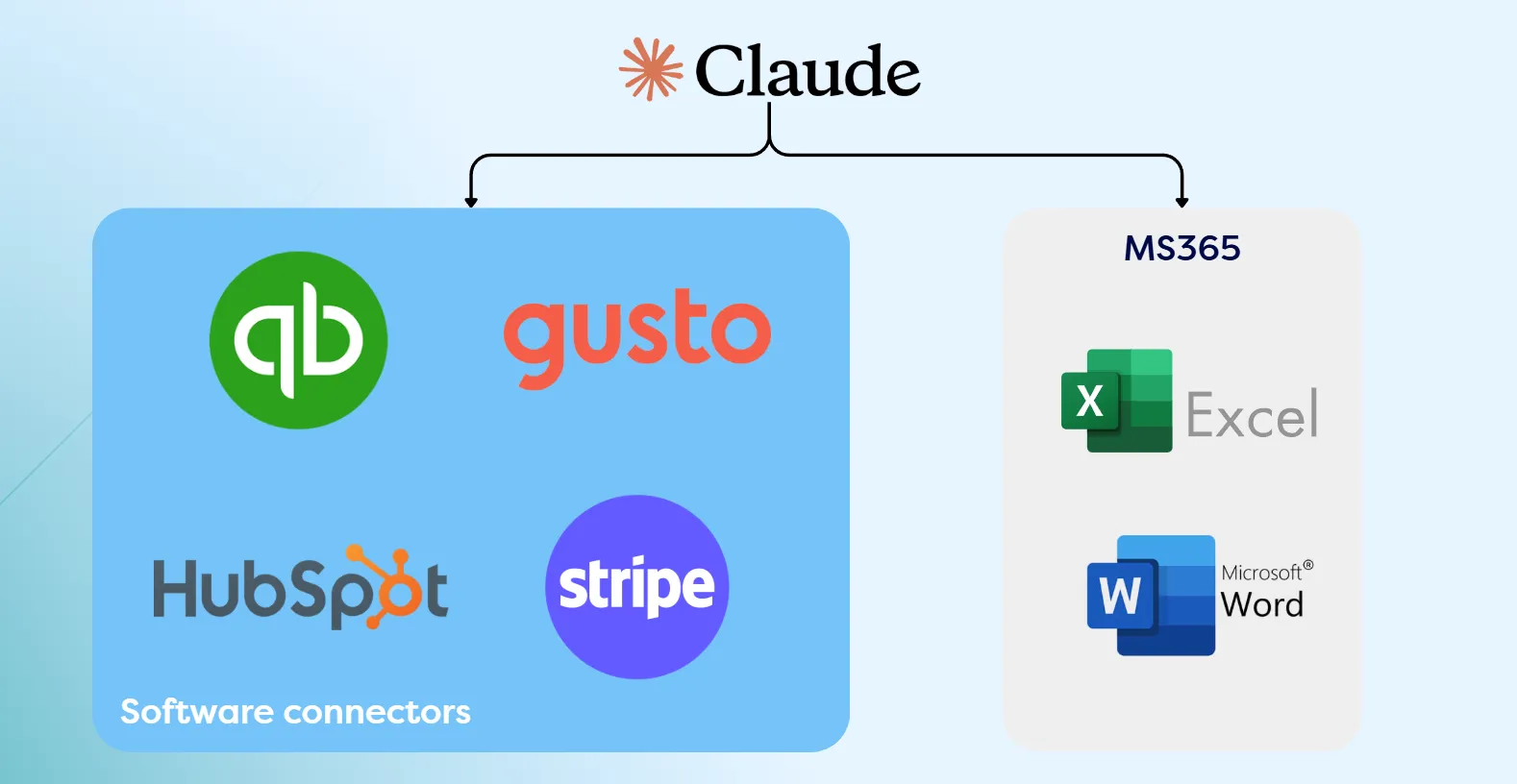
“Imagine a world where you can get that data directly into your Excel workbook by asking a natural-language prompt from the Claude plugin, instead of living in this world where you copy and paste data from a source or download a CSV file from QuickBooks.”
This is exactly why I built Go Fig. One governed layer across every app your team uses (accounting, CRM, warehouse, spreadsheets), with a single MCP connection into Claude for Excel. Onboard a new teammate, give them one login, and their Claude is instantly super-powered with your company’s data, definitions, and rules. The AI connector docs walk through the wiring end to end. If you’re already automating month-end close, this is the layer that makes the rest of the stack coherent.
Rule 10: Don’t get too comfortable
Claude, MCP, and Claude for Excel are changing fast. The workflow that works today is not the workflow that will work in six months.
That’s not a reason to wait. The infrastructure has been stable enough to rely on since late last year. But it is a reason to stay curious. Re-evaluate your skills, your docs, and your prompts regularly. When a new capability ships, adopt it. When a teammate finds a better pattern, steal it.

“As long as we allow ourselves to keep being open to finding new ways to do things better, we benefit. We save more time, we become more strategic leaders, and we can start being less robotic humans who are on laptops and be more empathetic humans that live in the real world and have face-to-face discussions with each other.”
That last part is the whole point. None of this is about staring at more spreadsheets. It’s about getting the mechanical work off your plate so you have time to think, to lead, and to actually talk to the humans whose numbers you’re analyzing.
Putting it all together
Apply all ten and Claude for Excel stops being a sidebar chatbot and becomes a leverage multiplier:
- Use Claude Opus 4.6 on the $100/mo plan: the tool has to be powerful enough to matter.
- Give Claude context: three layers (Instructions, CLAUDE-DOCS, Skills) ground answers in your company, not a generic SaaS.
- Use skills for repeated tasks: recurring work becomes deterministic.
- Improve Claude as a team: shared docs and skills make the collective brain compound.
- Don’t babysit Claude. Multi-task.: run four or five analyses in parallel and steer instead of watching.
- Offload everything, even small changes: Claude finds every downstream reference so nothing silently drifts.
- Don’t type. Speak instead.: dictation lowers the activation energy for rich, complete prompts.
- Ask Claude to make Claude better: every layer of the brain is itself a prompt Claude can improve.
- More software connections = less copy-pasting: MCP connectors pull live data instead of CSV exports.
- Don’t get too comfortable: the workflow that wins today will not be the one that wins in six months.
Your team moves from mechanical number-crunching to strategic thinking, parallel analyses scale horizontally, and the company’s collective brain compounds across every person who touches it.
Claude for Excel Starter Pack
I built a Claude for Excel Starter Pack that bootstraps all three layers of the brain. It includes:
CLAUDE-DOCS.xlsx, a pre-filled reference workbook template (accounts, definitions, policies, standards, notes, tasks, skills)user-instructions.md, a per-user Instructions field template you fill in and pasteClaude for Excel Best Practices, a Google Doc version of this post as a standalone referenceClaude for Excel Guided Setup and Best Practices Recording.mp4, a walkthrough video of the full setup and the ten rules in actionskills/, a folder of ready-to-upload skills including/financial-forecastREADME, a setup guide that ties it all together
For the connected, reconciled data underneath all this, that’s what I built Go Fig for. Go Fig connects every app your team uses, keeps the numbers reconciled, and feeds one MCP connection into Claude for Excel. Free trial, no credit card.